Dusty Manual
Machining operations
Tell Dusty what to machine and how: profile, pocket, V-carving, chamfer, drilling, boring, surfacing, fluting and texturing, with tabs, entries and trochoidal paths.
An operation says how to machine shapes: its type (profile, pocket…), its tool, its depths, its feeds and its own settings. A shape can be used by several operations (a pocket, then a profile, for example), and an operation can machine many shapes.
In this section
-
Creating an operation
Select shapes, add an operation and set it in the Operations panel: tool, color, machined shapes, output, the Problems section and the right-click commands.
-
Common settings
The settings every operation shares: start and final depth, feeds and spindle speed, depth per pass, stepover, cut direction diagram, chip load and accessories.
-
Profile
Follow the outline of shapes to cut out a part or engrave a line: outside, inside or along the line, stock to leave, pass order, trochoidal path and entries.
-
Tabs
Leave small bridges of material so that cut-out parts stay in place: tab type, size and height, automatic placement, the Tabs tool and the tab assistant.
-
Start point and direction
Choose where each outline starts — on a straight side rather than in a corner — and reverse the direction of a shape with the Start Point tool.
-
Pocket
Clear the inside of closed shapes down to the final depth, around islands: offset or raster pattern, stepover, stock to leave, entry and trochoidal path.
-
Rest pocket
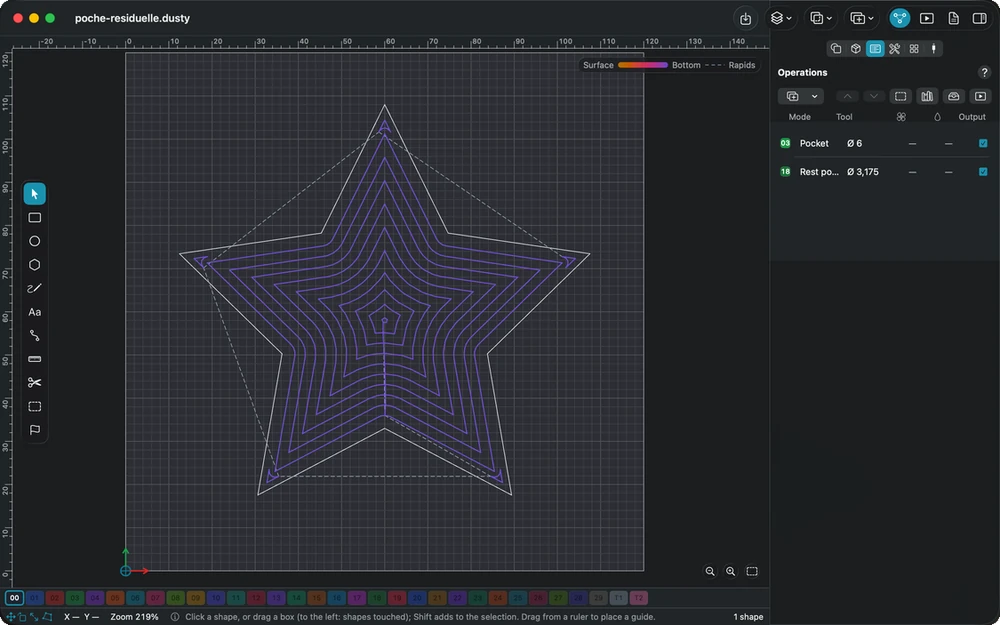
Take up with a smaller tool what a large bit could not reach — tight corners and narrow passages — on the same shapes, after the first pocket.
-
V-carving
Carve grooves of varying width with a V-bit, the depth following the medial axis of the shapes: maximum depth with a flat bottom, passes and open shapes.
-
Chamfer
Cut a bevel along the edge of a closed outline with a V-bit, Dusty computing the depth from the requested width, outside or inside, with a tip offset.
-
Dogbone slot
Clear a rectangle and cut a round relief into its four corners, so that a square-cornered tenon or panel fits, without changing the drawing.
-
Drill
Drill a hole at the center of each shape by plunge, peck, spot or countersink, with simple moves rather than canned cycles that GRBL does not know.
-
Bore
Machine round holes larger than the tool by going down in a helix along the wall, then making a flat turn at the bottom; which shapes it accepts.
-
Surfacing and face
Flatten the spoilboard with surfacing, or the top of the stock with a face operation, using an end mill or a wide surfacing bit, in raster or offset.
-
Fluting
Decorative flutes with tapered ends for columns, legs and frames: the tool ramps down gradually, cuts a flat section, then ramps back up.
-
Texturing
Cover a panel or a pocket floor with short ramped strokes drawn at random, for a hammered, gouged or bark-like look that a seed makes repeatable.
-
3D relief roughing
Clear the bulk of the material above a depth map, level by level, with a large tool, leaving a skin for finishing: with or without a carved background.
-
Entering the material
How the tool starts each pass: plunge, zigzag ramp, spiral or helix, which bits can plunge, and why a ramp spares the tool in hardwood and aluminum.
-
Trochoidal path
Small loops that advance along the path to limit tool engagement: less load on a weak spindle, deeper passes, and a wall pass for the exact size.
-
Machining order
The order of the Operations list is the machining order: how to change it, why the cut-out comes last, and how to group operations by tool.
-
Operations library
Keep proven operation settings with a copy of their tool, machine by machine, sort them into folders, and apply them to new shapes in one action.
-
Open shapes: machining them as a profile
A pocket and the other closed-shape operations ignore open paths: one command hands them to a profile on the line with the same settings, instead of closing them.
-
Not available yet
3D relief roughing and finishing are not offered in the New Operation menu yet: one imported from a MillMage project stays in the list but is ignored for now.
This manual is also built into Dusty: press F1, or open the Help menu, to read the topic for what you are doing. A mistake, a missing answer? Tell us
Try it in Dusty, for free.
Free CNC milling software: design, toolpaths and machine control. Mac, iPad, iPhone, Windows and Linux.