Getting Started
On iPad
The iPad app adapted to touch: canvas gestures, Apple Pencil, keyboard and trackpad, multiple windows, network machines and what to know while machining.
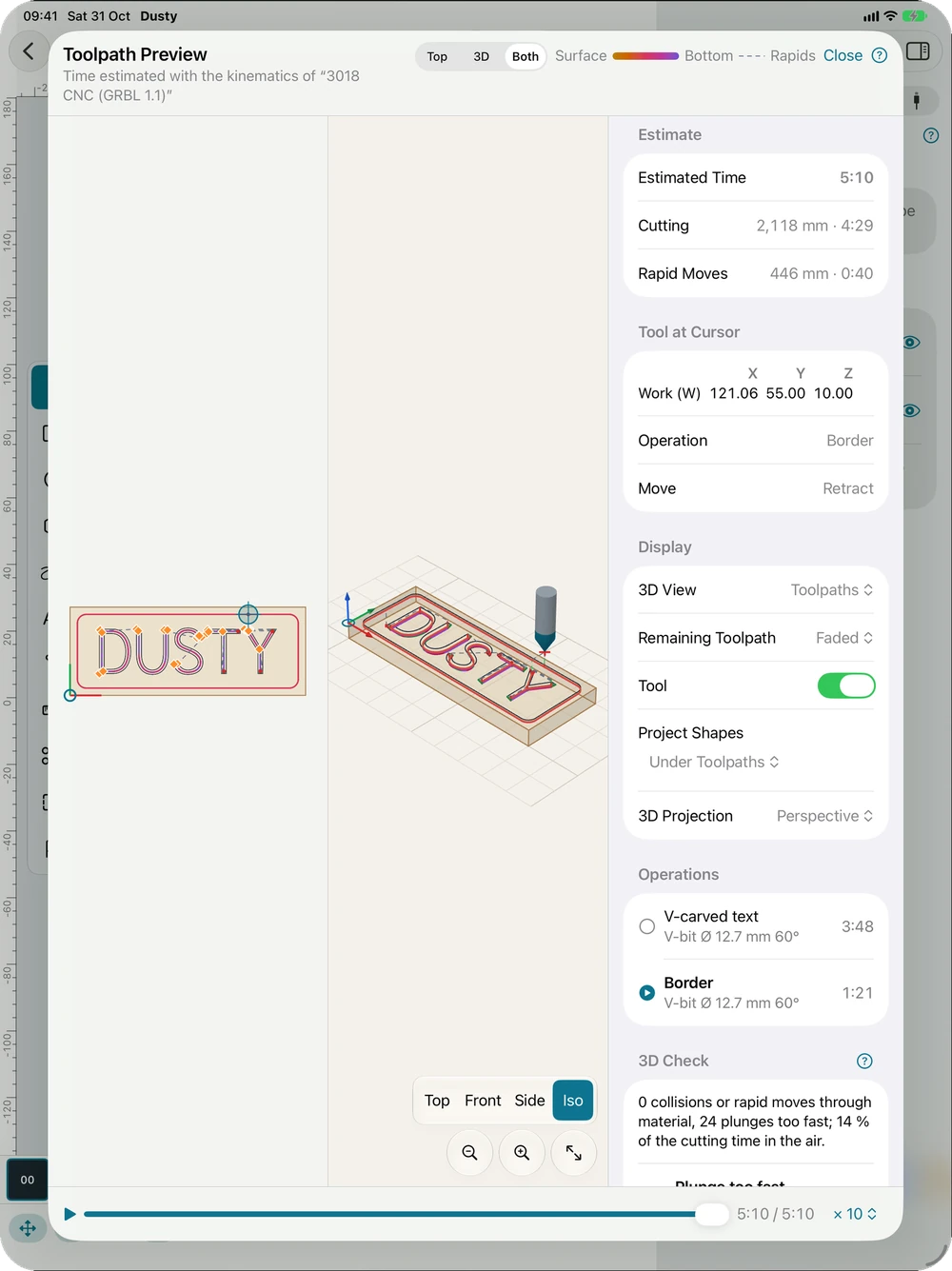
The iPad app is the same as on Mac, adapted to touch:
- Canvas gestures: one finger draws and selects (even after a short pause or when dragging slowly), two fingers move the view, pinch to zoom; double-tap a text to edit it; with the Selection tool, a long press, finger still, opens the context menu (clipboard, lock, drawing order, new operation; on empty space, Show Inspector when it is closed), like right-clicking on Mac.
- Undo and Redo: the two arrows left of the zoom buttons, at the bottom right of the canvas; ⌘Z and ⇧⌘Z on a keyboard; the iPad three-finger gesture (swipe left, or double-tap) also undoes.
- More menu (…) in the toolbar, handy without a keyboard: cut, copy, paste, duplicate (with or without the operations), delete, select all, invert selection, Select; undo history, project notes, rulers, filled shapes; export the drawing; project setup; settings; manual; My Machining Is…; licenses. The Arrange and Shapes menus of the toolbar match those of the Mac.
- With a keyboard, the Mac menu shortcuts work; hold ⌘ to see them. The canvas also receives its keys as on Mac, as soon as the project opens and after typing in a field, with no need to touch it first (after a toolbar menu, touch it if a key does nothing): tool letters, arrows, Delete, Escape, Tab, Space, ⌘A, ⌘D, node mode keys and Selection tool keys (“,”, “.”, Shift + letter). In the Machine panel, Keyboard Jog gives the arrows to the jog until you touch the canvas or a field. Most iPad keyboards have no F1 key: the ? buttons and the More menu open this manual.
- When the tool hint does not fit in the status bar (inspector open), only its ⓘ icon remains: tap it to read the whole hint.
- On iPadOS 17 and 18, a project always opens with the inspector (closed at opening, it took the toolbar away); close it afterwards as usual, the toolbar stays.
- The machine list, the console, the controller settings and the manual open as sheets.
- Apple Pencil: the Pencil draws precisely (a finger has wider hit areas). Double-tapping the Pencil (2nd generation) or squeezing it (Pencil Pro) switches from the drawing tool to the Selection tool, then back to the tool you left, depending on the iPad setting (Settings › Apple Pencil: “Switch to previous tool” or “Eraser”). With Only Draw with Apple Pencil (same setting), a finger moves the view instead of drawing. A Pencil hovering over the screen (compatible iPads) shows the crosshair, like a trackpad.
- Trackpad and mouse: buttons highlight under the pointer; the crosshair and snapping follow the hover.
- Multiple windows: open two projects side by side (Split View), or as many windows as you like with Stage Manager; each window can be resized. In a narrow window (or on iPhone), the inspector opens as a half-height sheet: the canvas stays visible and usable above it; drag the handle to enlarge it.
- Machine: the iPad has no serial port. Connect a network machine (GRBL over Wi-Fi or Ethernet, grblHAL, FluidNC), go through Dusty Link (a USB CNC on a Raspberry Pi or a computer in Hub mode; found with Bonjour), or try everything on the virtual CNC. On the first connection, the iPad asks for local network access: allow it (otherwise, Settings › Privacy › Local Network).
- While machining, the iPad screen stays on (job of the connected machine, or of a machine shared by Dusty Link). Keep Dusty in the foreground during a job sent by the iPad: iOS suspends a background app after about thirty seconds, and a suspended app no longer sends the G-code. If Dusty goes to the background, it pauses the job with retract (Z raised, spindle stopped) after 20 seconds and tells you when it comes back; resume it in the Machine panel. A job started through Dusty Link goes on without the iPad.
This manual is also built into Dusty: press F1, or open the Help menu, to read the topic for what you are doing. A mistake, a missing answer? Tell us
Try it in Dusty, for free.
Free CNC milling software: design, toolpaths and machine control. Mac, iPad, iPhone, Windows and Linux.