Getting Started
The Dusty window
The canvas sized to the stock, the origin marker, the drawing tools, the paint colors, the status bar, the toolbar and the five panels of the inspector.
Each project opens in its own window:
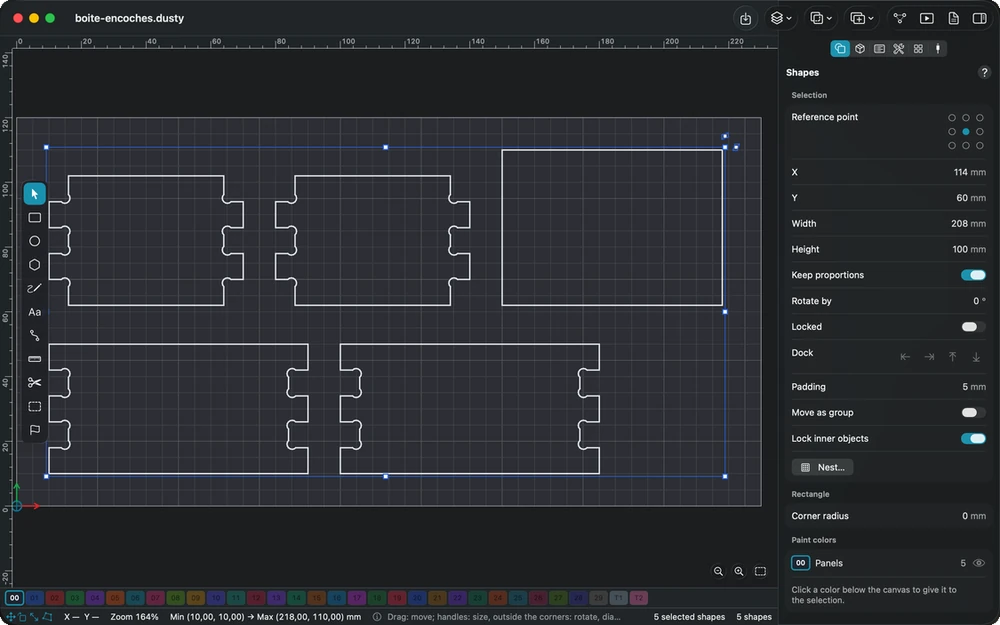
- Canvas in the middle: the work area has the size of the stock; the origin marker (teal ring, red X arrow, green Y arrow) shows the point where you will set zero on the machine.
- Drawing tools in the floating column on the left of the canvas; view controls (zoom out, zoom in, zoom to stock) at the bottom right.
- Paint colors below the canvas, then the status bar: pointer position measured from the project origin, zoom, number of shapes, and the number of shapes without an operation (they will not be machined).
- Toolbar: Import, Arrange, Shapes (operations on shapes and paths), New Operation, Toolpaths (shows the toolpaths on the canvas), Preview, G-code, Inspector. While a machine is connected, its state and the STOP button are added, whatever panel is shown.
- Inspector on the right, with five panels chosen by the icons at the top: Shapes (selection, text, colors), Project (stock, origin, heights), Operations, Tools, Machine. The ? button next to the panel title opens its topic.
- Menus (Mac): File, Edit, Drawing, Arrange, Operations, View, Machine, Window, Help. On Mac, the machine list, the console, the controller settings and this manual open in separate windows.
This manual is also built into Dusty: press F1, or open the Help menu, to read the topic for what you are doing. A mistake, a missing answer? Tell us
Try it in Dusty, for free.
Free CNC milling software: design, toolpaths and machine control. Mac, iPad, iPhone, Windows and Linux.